A colleague asked me last summer how to quickly check whether the campaign launched the day before was doing anything. He did not want to log in, build a report, or set a filter. He just wanted to know, inside the tool he was already working in.
That is exactly what the MCP connector is built for.
MCP stands for Model Context Protocol. It is an open standard that lets AI assistants like Claude connect to external data sources. Govanalytics supports that protocol. Once connected, you can query your analytics data directly inside Claude: no browser switching, no export, no copy-pasting.
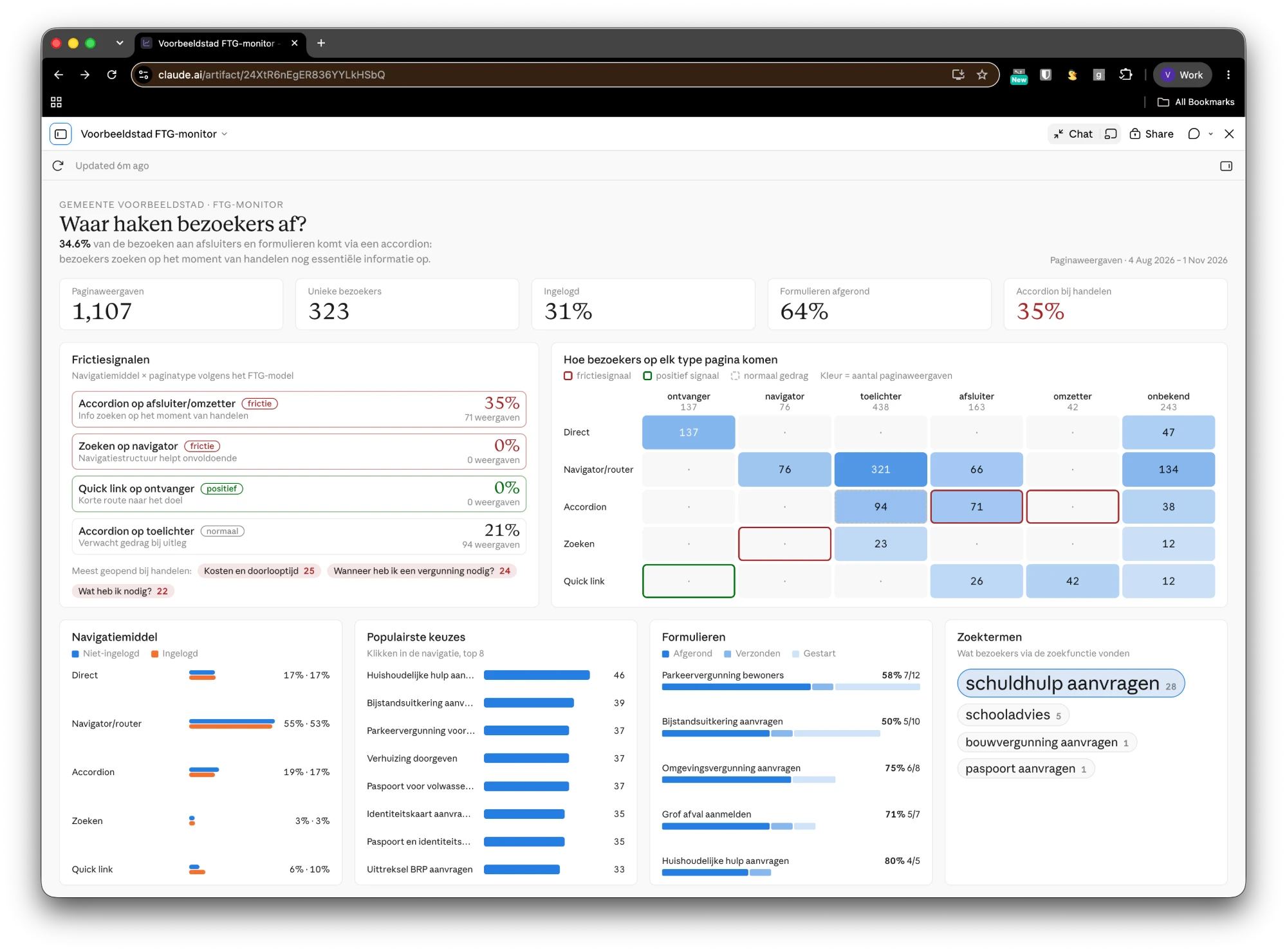
What MCP adds to your dashboard
A dashboard answers the questions someone built it to answer. An MCP connection answers the question you have right now.
Say you need three steps: export sessions by page, export audience by channel, put them side by side. In the dashboard you do that manually. With the MCP connector you describe what you want to know and the agent handles the steps.
That also makes the connector useful for people who never open Govanalytics themselves. An editor wants to know which news article was read most last week. A team manager wants to know whether visitors on the vacancies page have gone up. They do not need to log in. They ask Claude.
What you can retrieve
The MCP connector gives Claude access to a set of analytics functions:
- List properties: which websites and apps are connected to the account.
- Get context: timezone, goals, saved reports, available dimensions and metrics for a property.
- Run a query: tables, time series and goal conversions, with an optional comparison to an earlier period.
- Measure funnels: conversion through ordered steps, such as page view, form start and submission.
- Analyse user journeys: which pages users visit before or after a specific event.
- Retrieve saved reports: reports your team has saved are immediately available.
- Check tracking installation: retrieve the tracking snippet for a property and identify installation issues.
Two functions are also available as prompt templates in clients that support them: the weekly review (last week versus the week before, with follow-up actions) and the tracking audit (a step-by-step check of whether the installation is correct).
Connect with the Claude desktop app
- Open Settings → Connectors and click Add custom connector.
- Give the connector a name (we suggest govanalytics) and enter the server URL:
https://app.govanalytics.nl/mcp. - Click Add, then click Connect.
- Your browser opens the Govanalytics sign-in page. Sign in as usual.
- A consent screen asks which account the connector may read. Choose the account and click Allow access.
The connection is valid for up to 30 days. After that, Claude will ask you to sign in again. To disconnect, remove the connector in your client settings.
Connect with Claude Code
Run this command in your terminal:
claude mcp add --transport http govanalytics https://app.govanalytics.nl/mcpThen run /mcp in Claude Code, select govanalytics and choose Authenticate to sign in.
Example questions
A few example questions to get started:
- “How did conversions by traffic source change compared with last week?”
- “Show the drop-off funnel for the contact form last month.”
- “Which pages do users visit before they sign up?”
- “Check whether the tracking code on the homepage is installed correctly.”
You do not need to format questions as queries. The connector translates plain sentences into the appropriate analytics functions.
Read-only access
The connector has read-only access. It cannot change settings, modify goals, delete reports, or edit data. It only sees the account you approved, and the permissions of your role in that account still apply.
Frequently asked questions
-
No. The connector uses OAuth. You sign in through the familiar Govanalytics login page; the client registers itself. There is no API key, client ID or secret to enter.
-
Any MCP client that supports remote servers with OAuth. The Claude desktop app and Claude Code are officially supported. Other clients that follow the MCP standard will generally work too.
-
Up to 30 days. After that the client asks you to sign in again. You can also disconnect earlier by removing the connector in your client settings.
-
No. The connector has read-only access. It cannot change settings, delete reports, or edit data.
-
No. The MCP connector is available for Govanalytics Cloud accounts only. Self-hosted installations do not support the connector.
-
You choose which account the connector may read when you connect. To switch accounts, remove the existing connector and reconnect.